AN INSTAGRAM TRANSCRIPT GENERATOR FIELD NOTE
Why do my transcript edits disappear in the SRT download?
In Reel to Words, TXT and Markdown download the text you edited. SRT and VTT download the original timed speech segments. Editing the transcript box does not rewrite subtitle cues. For corrected captions, open the subtitle file in your video editor, fix the cue text there, and preview it against the audio.
A readable transcript and a subtitle track are different handoffs. One carries words; the other also carries instructions about when each line appears. If you are using an Instagram transcript generator to prepare captions, check the actual downloaded file rather than assuming that every export mirrors the text box.
What our real export test found
We tested the live Reel to Words tool with the public JFK speech audio fixture from the Transformers.js documentation dataset. We selected English, generated a genuine transcript, and then added the editorial marker [Reviewed export check] to the text box. The marker was typed after recognition; it was not spoken in the audio and is not presented as a transcription result.
Copying the edited text retained the marker. We then downloaded every available format from that same result. The TXT and Markdown files contained the marker. The SRT and VTT files did not. Their spoken text still matched the original recognition output, and both kept the original timed segment. This is a file-content check, not a comparison of button labels or marketing claims.
| Handoff | Editorial marker retained? | What we observed |
|---|---|---|
| Copy text | Yes | Clipboard matched the edited box |
| TXT | Yes | Edited text, without cue timing |
| Markdown | Yes | Edited text under a transcript heading |
| SRT | No | Original recognized words with cue timing |
| VTT | No | Original recognized words with WebVTT timing |
The first model-load indicator reported 3.83 seconds on the test device. That is the page's measured model-load reading from this run, not the full processing time, a cold-cache benchmark, or a promise for another phone. The export behavior matters independently of how quickly the model starts.
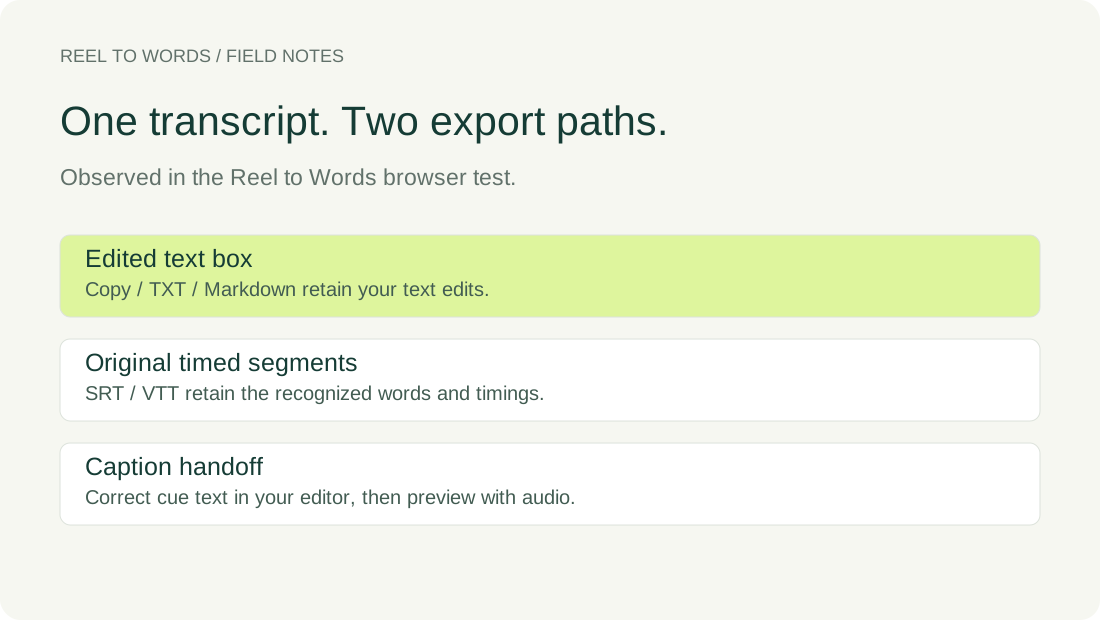
Watch a short walkthrough of the export check ↗. The video uses original diagrams and synthetic narration.
Choose the result you actually need
For a quote review, written post, study notes or a script draft, start with the editable text and use TXT or Markdown. Review the words against the recording before sharing them. A transcript is not a guarantee that names, punctuation or unclear speech are correct.
For timed captions, take SRT or VTT into an editor that accepts that format. Review the words inside the cues and play the video with the track enabled. A subtitle file is not a rendered video, so downloading it does not by itself place visible text onto the picture.
Reproduce the check without private media
- Open the Reel to Words tool and choose a short audio or saved video file that you have permission to process.
- Select the spoken language, generate the transcript, and confirm that the words actually appeared.
- Add a distinctive editorial marker to the text box. Keep this separate from the speaker's actual words.
- Use Copy text, then download TXT, Markdown, SRT and VTT.
- Open each downloaded file as text and search for your marker. Do not change the file extension to make a transcript look like subtitles.
- Remove the marker from any file you plan to publish. Review a caption track while listening to the source audio.
You can inspect our actual test downloads below. They are evidence files from the same browser result, including an intentionally added editing marker where the export retained it. They are not example captions for your own video. Our audio fixture was selected locally; it was not uploaded for server-side transcription.
Inspect TXTInspect MarkdownInspect SRTInspect VTT
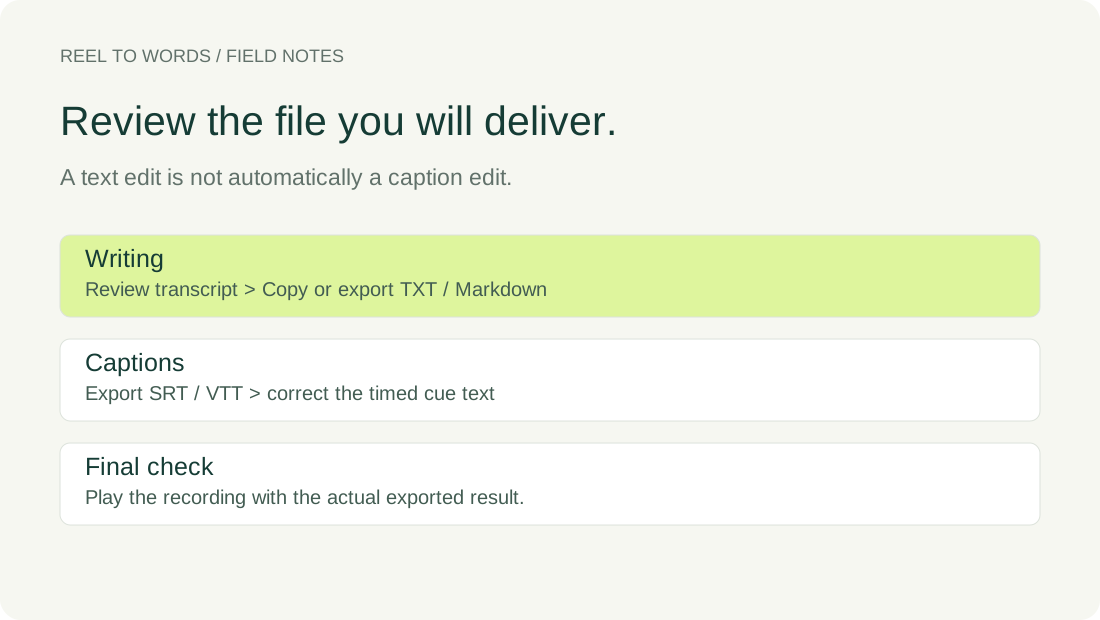
This check applies to the Reel to Words build tested on the date above. We did not upload the fixture to competing services or test their editor behavior. A different transcriber may synchronize its transcript and subtitle editor, so repeat the marker check rather than transferring this result to another product.
Why the distinction is easy to miss
Transcription pages often list copy, text and subtitle exports together. For example, GetTheScript's Instagram page describes TXT, SRT and VTT, while SpeakApp's Reel page describes copying or downloading a transcript. Those descriptions establish available handoffs, not how a particular edit propagates between them. We are using their structure as a benchmark, not asserting that their export behavior matches ours.
Questions before you hand captions over
Does changing a TXT filename to .srt create subtitles?
No. A subtitle track needs timed cues in the expected structure. A new extension does not supply timing. Start from the SRT download when your editor needs SRT.
Can I edit words in a downloaded SRT?
Yes. Correct the cue text in a subtitle-capable editor and retain valid timing. Play the result with the recording to check both words and alignment.
Why are the SRT and VTT timestamps written differently?
They use different text-file conventions. In our downloaded files, SRT separated milliseconds with a comma and VTT used a period and a WEBVTT header. Use the format your destination supports.
Does this Instagram Reels to text workflow require a public link?
Reel to Words takes a saved audio or video file. It does not retrieve an Instagram URL. You select the file, and speech recognition runs in your browser.